How to use MateShelf
In the examples, Ann owns the item, Ben is borrowing it and Cara is in the queue.
1. Getting started
- Install MateShelf from the App Store or Google Play (coming soon).
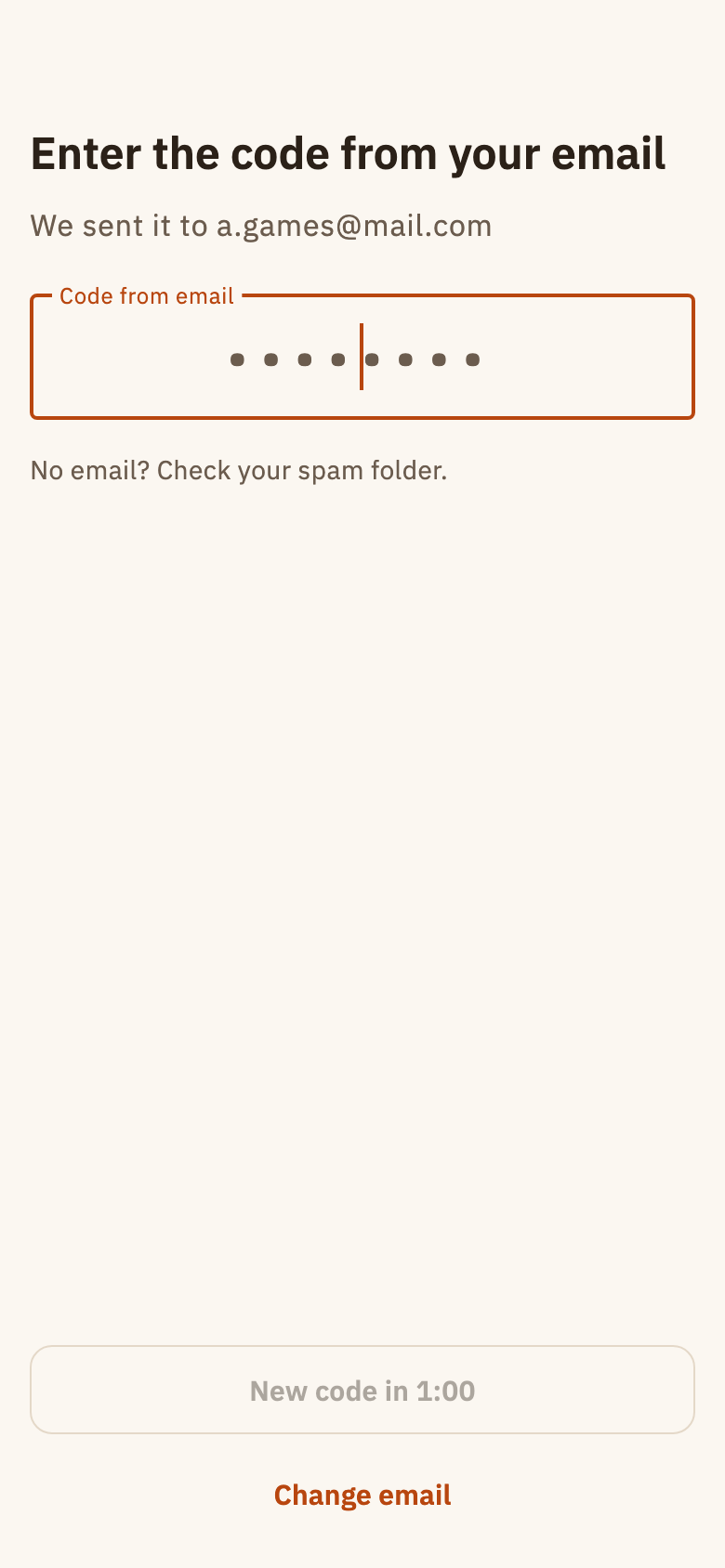
- Enter your email, then type the code we email you. There's no password to remember, and each code works once.
- Choose a display name (what your friends actually call you) and a username.
- Create your first group, or join one with the invite link or invite code a friend sent you.
A "Getting started" card on Home shows the next step. If you started the group: create a group → add your first item → invite friends. If a friend invited you: join the group → borrow your first item → add your own items. Steps tick themselves off, and the card goes away when you're done.
To see the intro cards again, go to Profile › Help.
2. Groups and friends
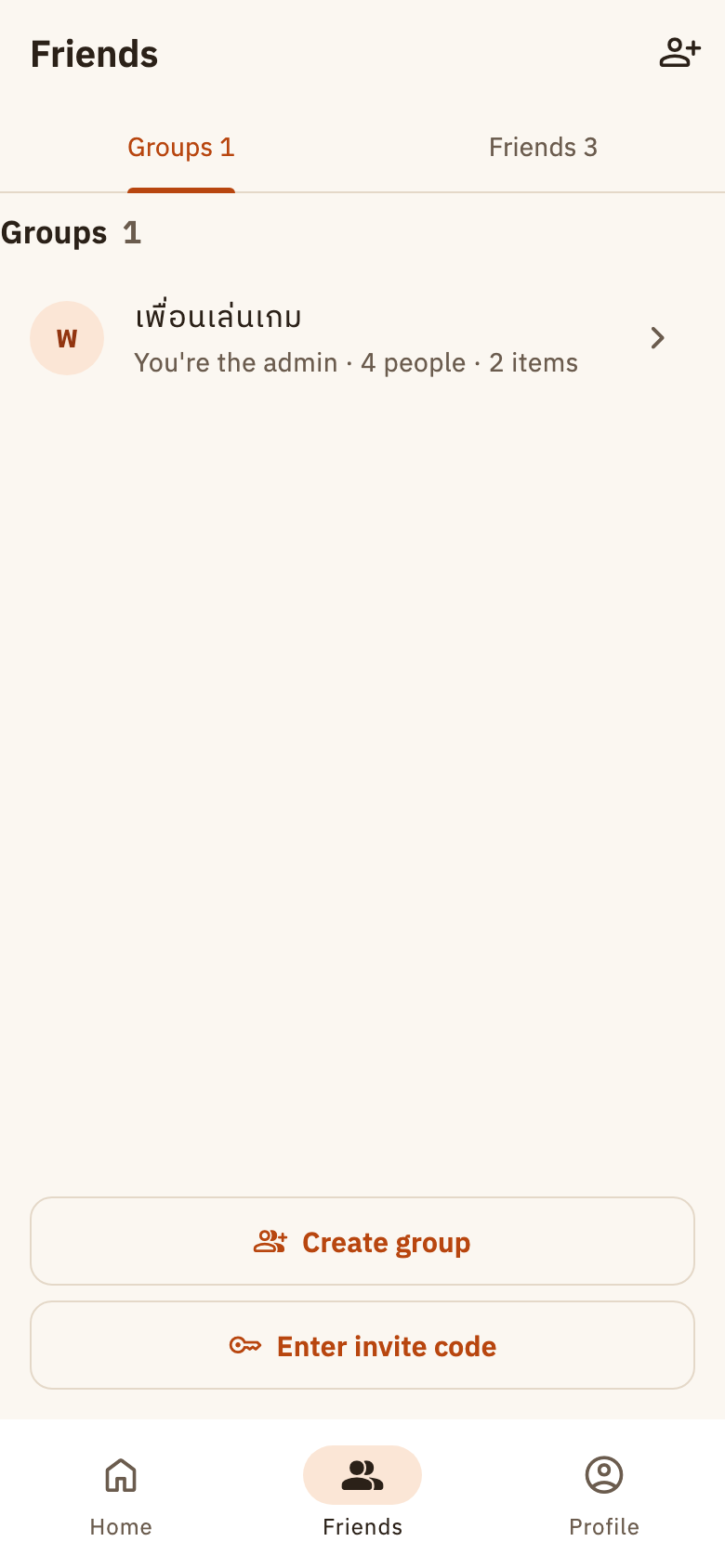
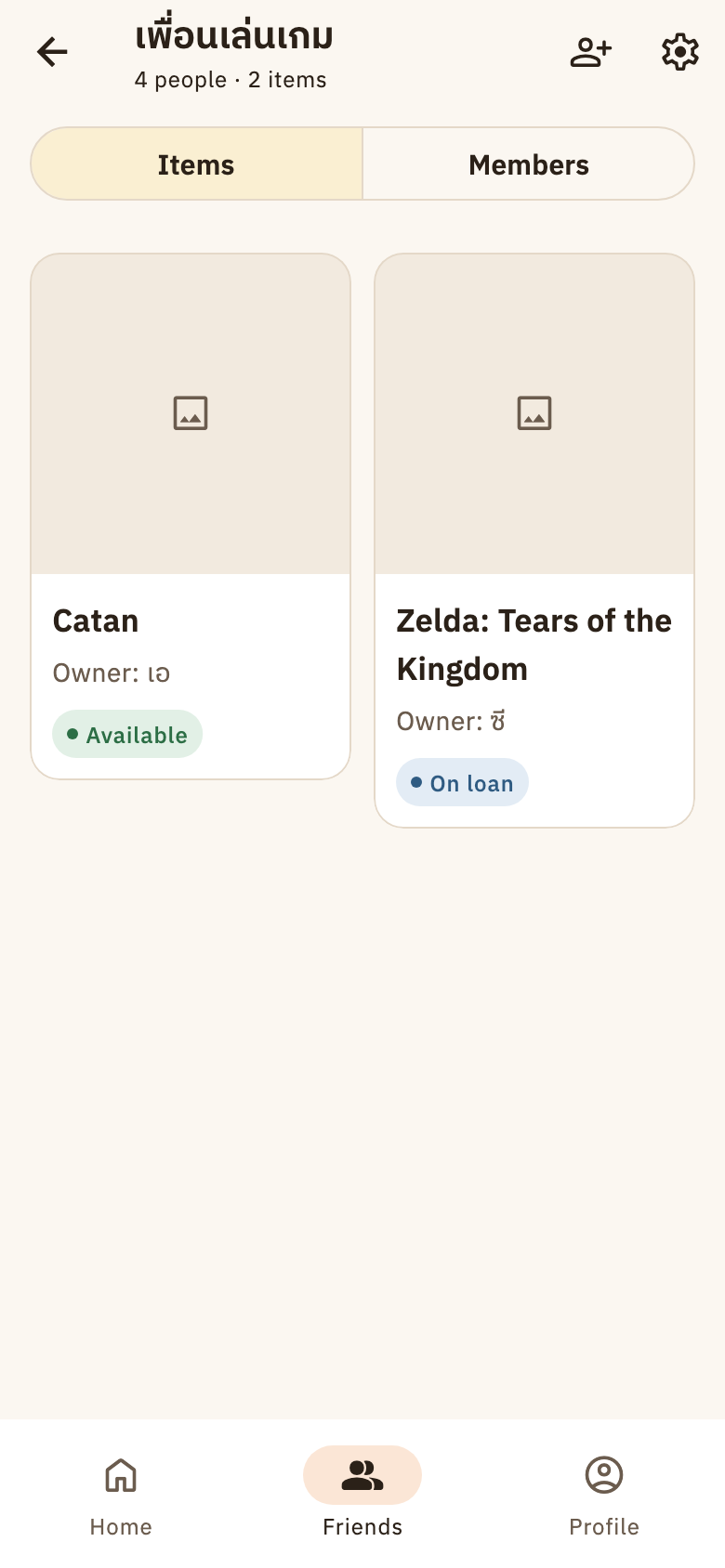
Create a group and invite friends
- A group only needs a name. Whoever creates it is the group's admin.
- Tap invite and pick the chat app you use. The invite has both a link and an invite code.
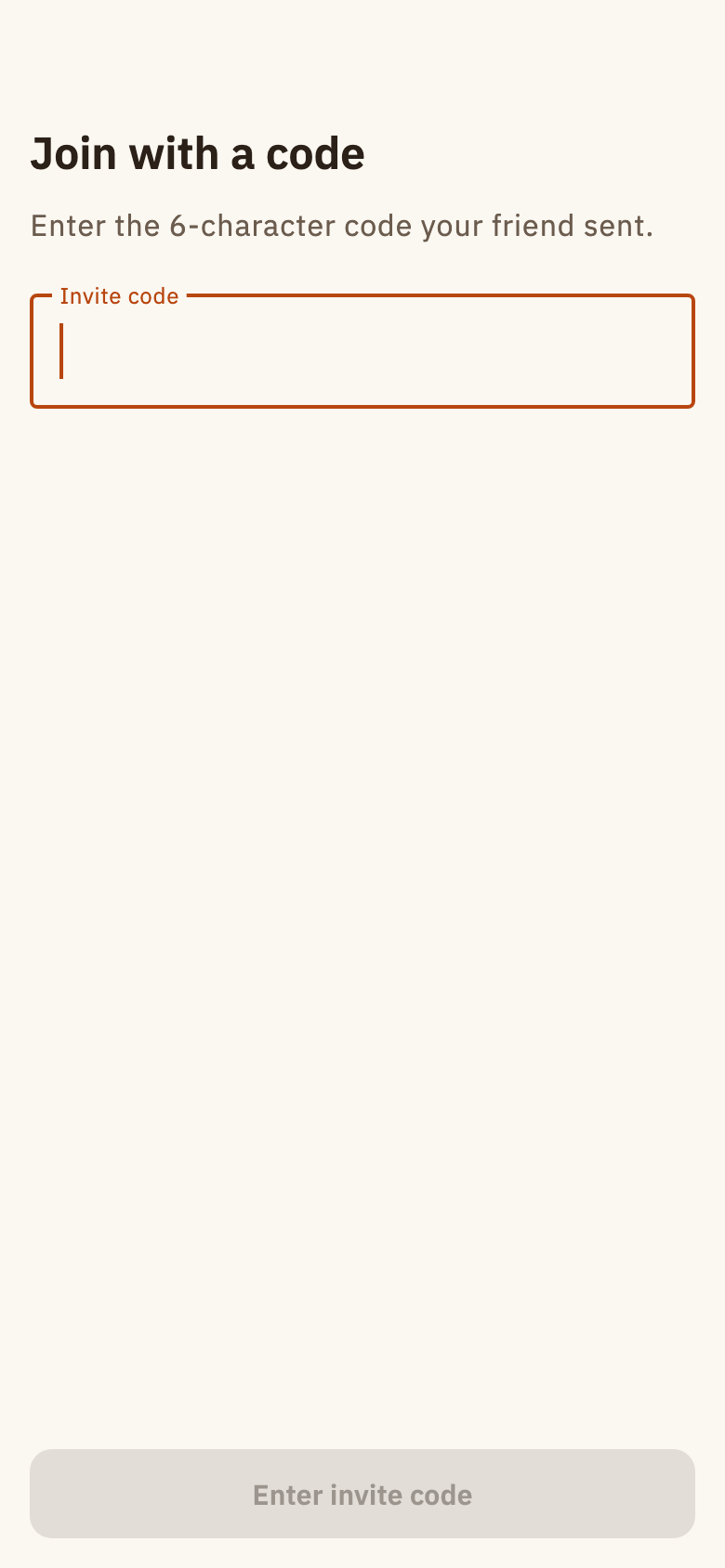
- Friends tap the link and join straight away. If they don't have the app yet, the link takes them to install it first. If the link gets lost during install, they can type the invite code in the app.
- Invite codes don't expire. The admin can reset the code, and the old one stops working at once.
Individual friends
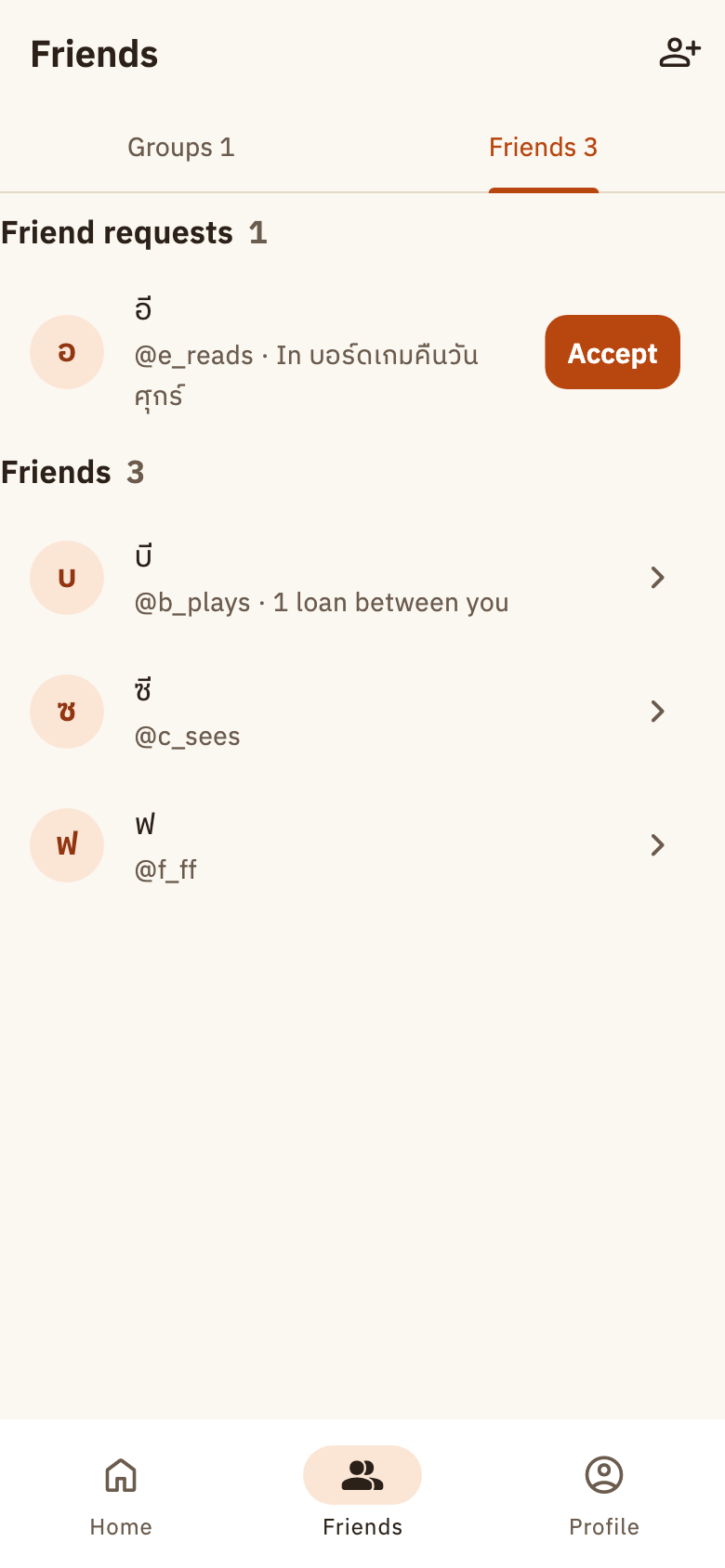
You can add friends without sharing a group. They have to accept first. Once you're friends, you can share items with that person on their own.
Leaving a group
- You can leave a group even while you're borrowing something from someone in it. That loan carries on as normal.
- If the admin leaves, the member who has been in the group longest becomes admin. If the last member leaves, the group is deleted.
3. Adding items
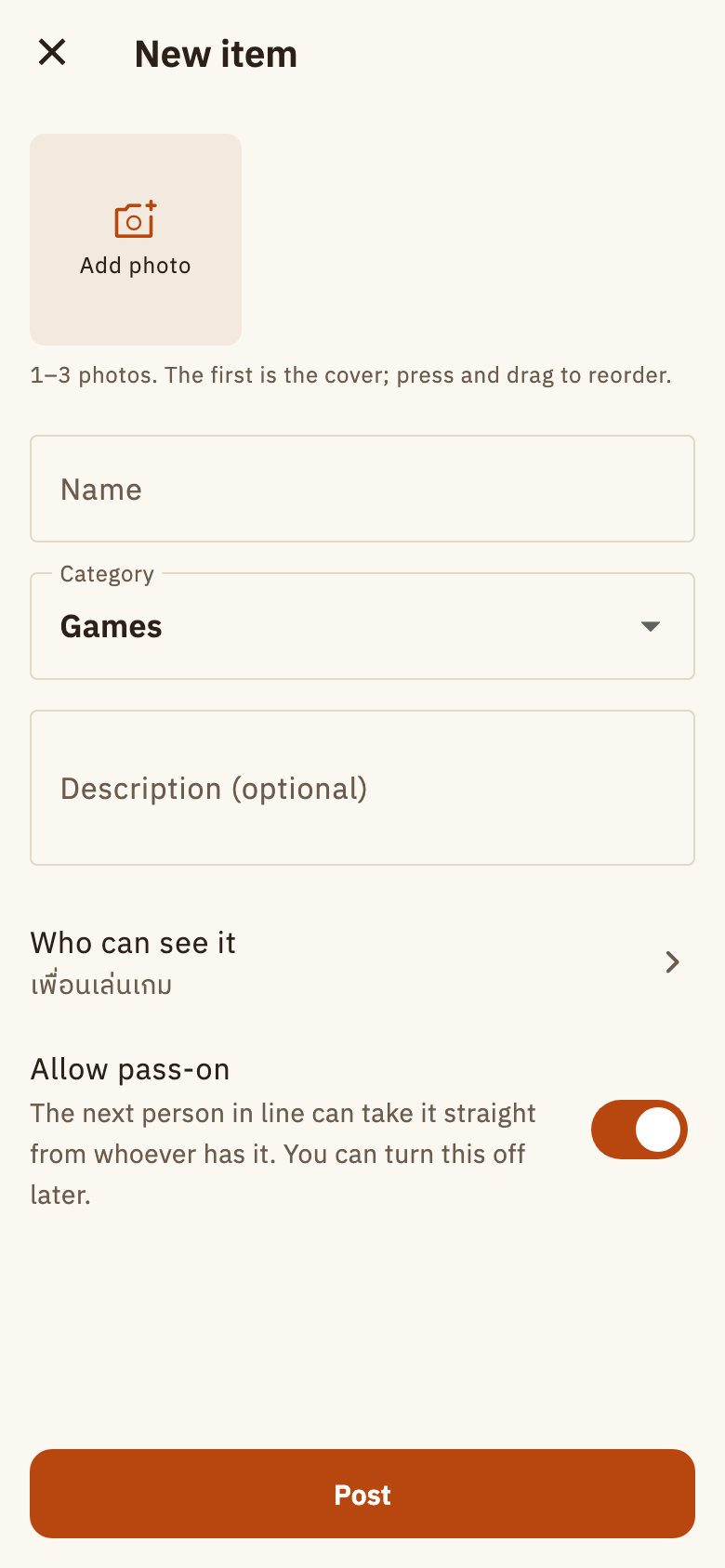
- Take or pick 1–3 photos. At least one is required, because friends choose what to borrow from the photos.
- Add a name, a category and a description.
- Choose who can see it: which groups, or which friends.
Per-item settings on the item's page:
- Available to borrow: turn it off when you don't want requests for a while. The item shows Paused. Requests not yet approved are declined; approved loans and queue places carry on.
- Allow pass-on: turn it off if you want the item back with you each time before it goes to the next person.
You can edit an item any time. You can delete it only while it's with you: open requests and queue places are cancelled, and its history is kept. If you remove a group from who can see an item, people in that group who are borrowing or queuing carry on; they just can't make new requests.
4. Borrowing
- Find something on Home or with search. Available items come first.
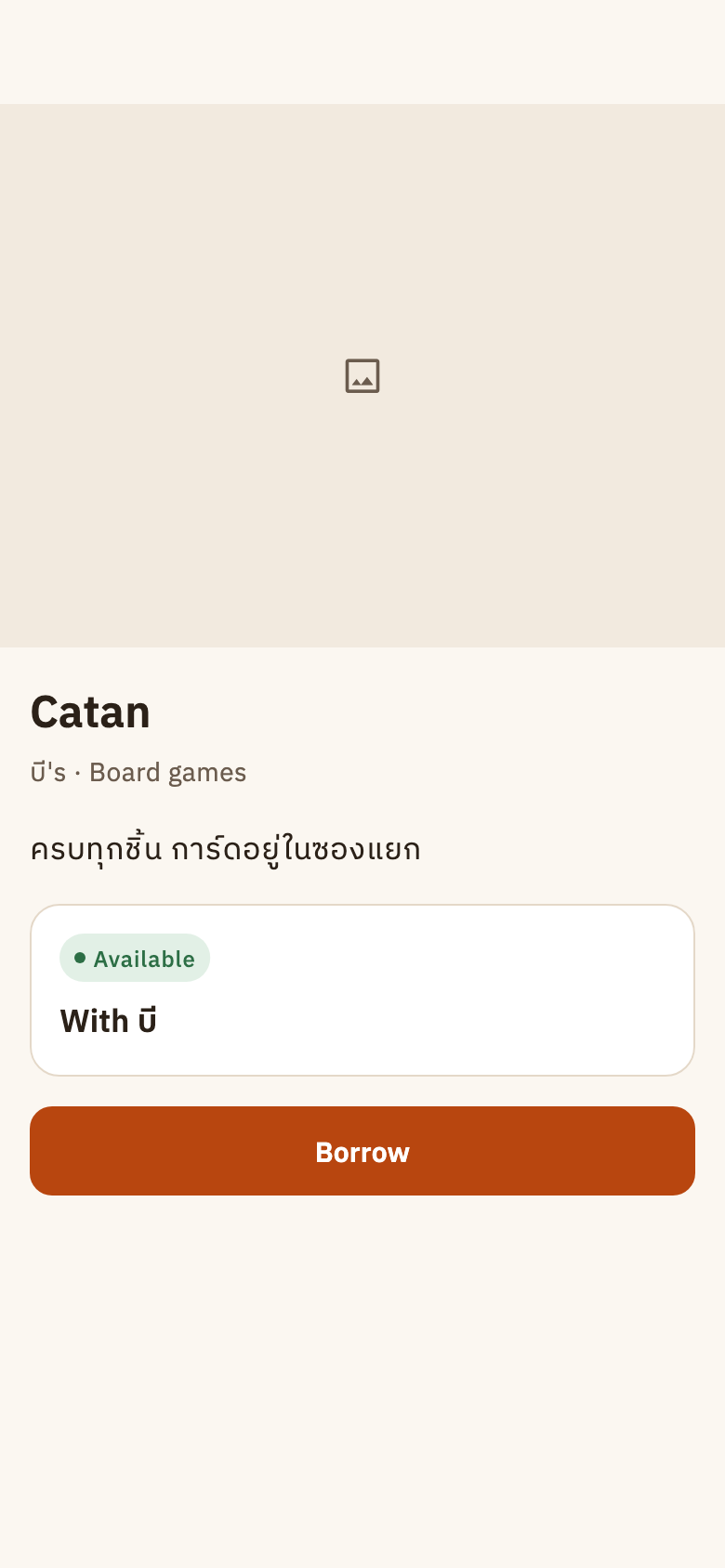
- Open an item that's Available and tap Borrow.
- Choose how long: 7, 14 or 30 days, no fixed date, or your own length of 1–90 days (14 days by default).
- Wait for the owner to approve. The item shows Awaiting approval, and you can cancel your request.
- Once it's approved, you get a notification to arrange pickup with the owner, however suits you.
- When the item is in your hands, tap Confirm received.
Why confirm?
The owner sees that the item has reached you, and the due date starts from the day you confirm. Don't tap it before you have the item: until then, the sender still has it.
If the owner declines, you get a short notification with no reason given, and you can ask again later.
5. Lending (for owners)
Approving requests
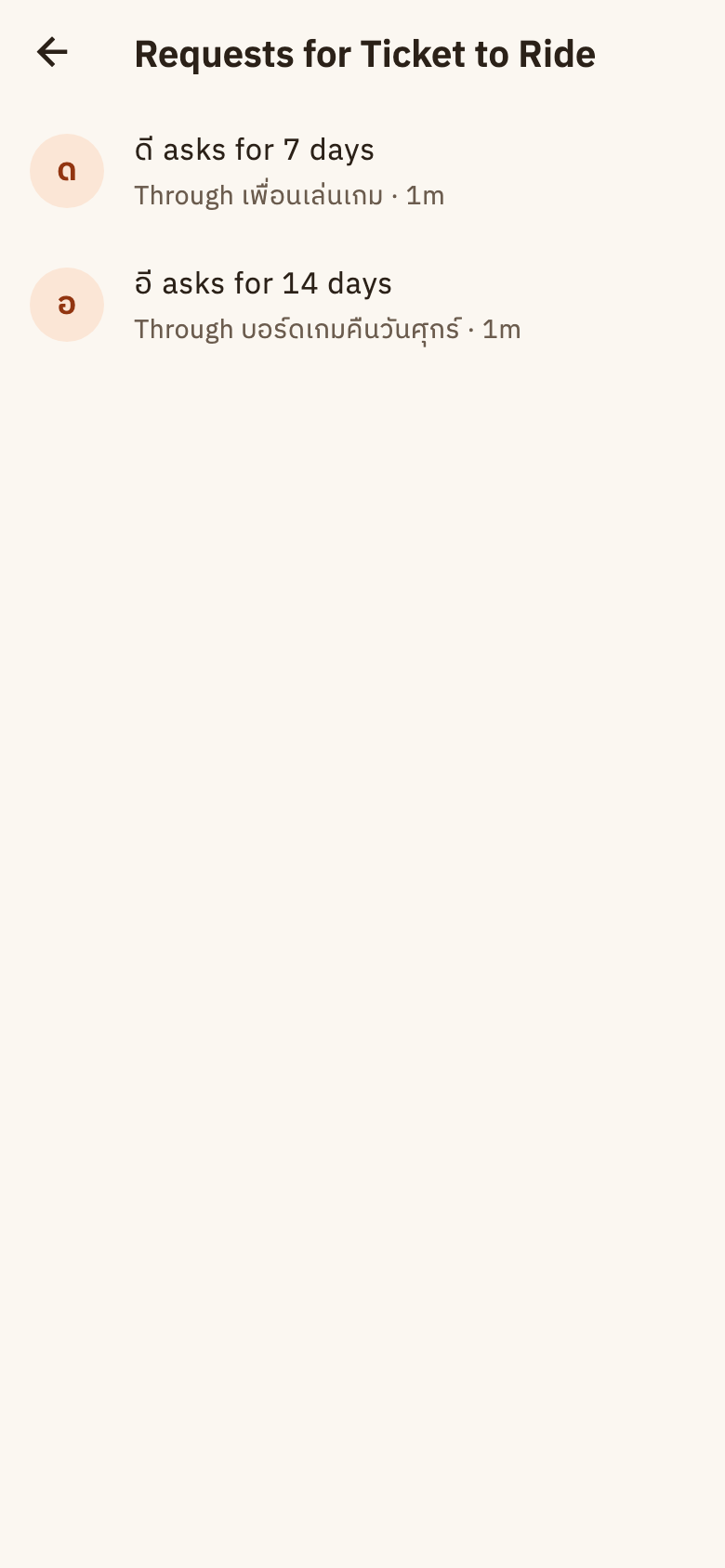
- When someone asks to borrow, you get a notification and the request appears in "needs you" at the top of Home.
- Approving means you agree to lend and counts as sending the item: it goes straight to Awaiting confirmation. Then arrange the handover.
- Several requests at once: the first one you approve gets the item, and the ones you approve after that join the queue in the order you approved them.
- You can decline without giving a reason.
Lending directly
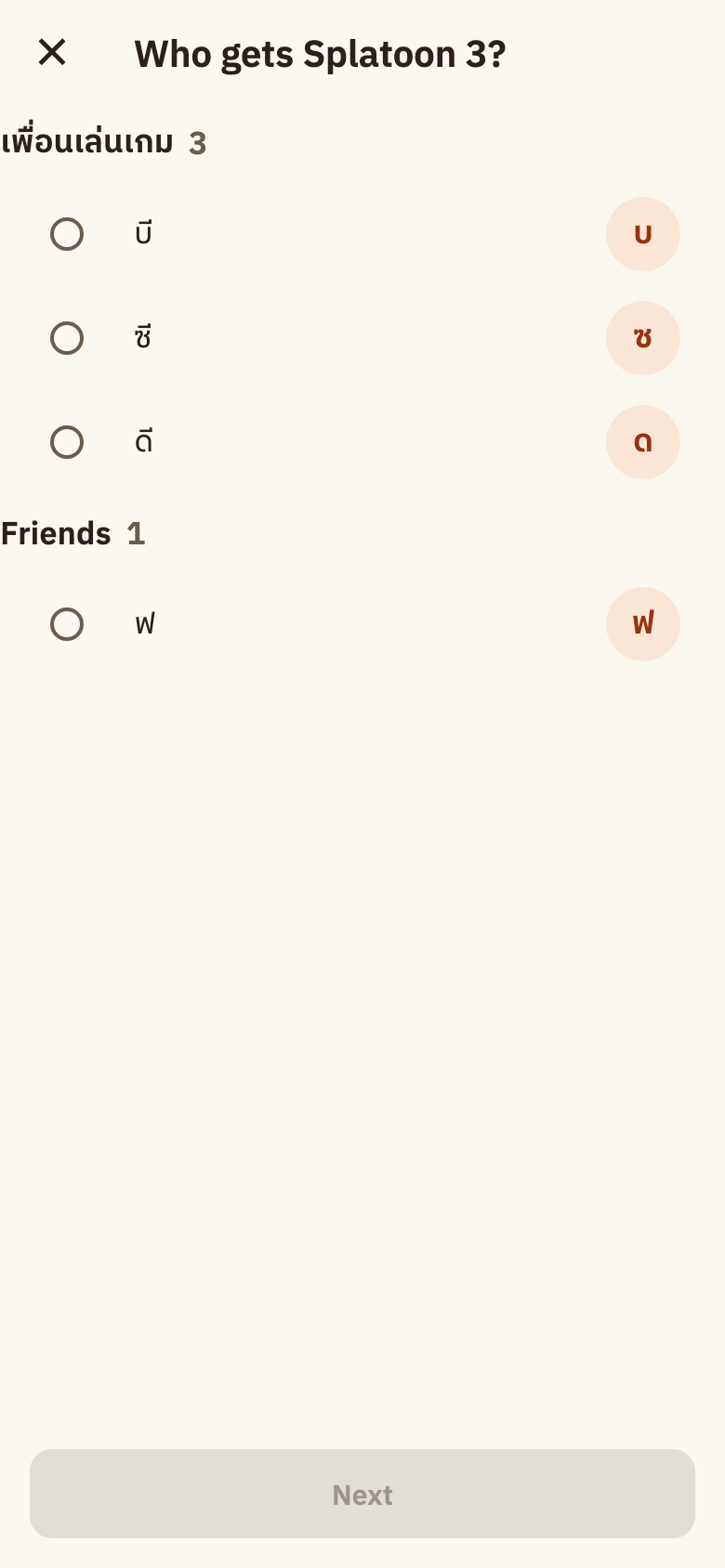
No need to wait for a request: tap Lend on an available item and pick who gets it. They confirm once they have it.
While it's out
You don't need to do anything. The app reminds the borrower about the due date. If you need it back early, tap Ask for it back (see section 8).
Getting it back
When the borrower returns it, you get a notification. Once you really have it, confirm the return. If there's a queue, your next button is Lend to the first person in line.
6. Queues and passing on
Joining a queue
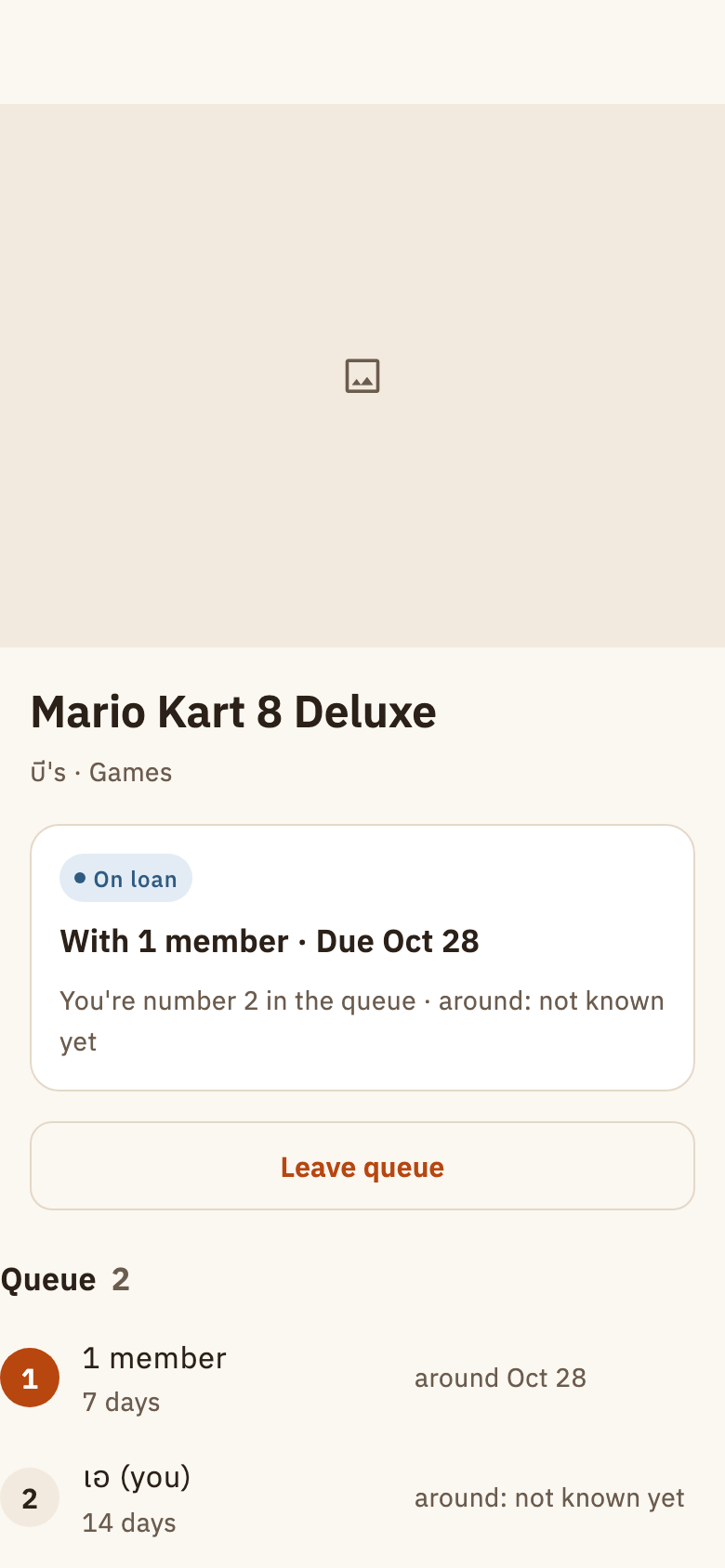
- For an item that's out, tap Join queue and choose how long.
- The owner approves you before you're in the queue. The queue is in the order the owner approved, not the order people asked.
- The app shows roughly when you'll get it ("around Nov 4") and tells you each time that date changes. If someone ahead has no fixed date, it shows "not known yet".
- You can leave the queue any time.
Passing it on
The holder can hand the item straight to the first person in the queue, without returning it to the owner first, when all four are true:
- The receiver is first in the queue.
- The receiver knows the holder (they're friends or share a group).
- The owner allows pass-on.
- The owner hasn't asked for it back.
Then the holder sees Pass on to Cara. Cara confirms on receiving it, and the due date starts again from then, for the length Cara asked for. The owner is told every time an item is passed on.
Otherwise the holder sees Return to Ann with a short reason, and the owner sends it on to the queue.
7. Returning
- Arrange to give it back to the owner, then tap Return to Ann.
- The owner confirms once they really have it. Until then it shows Awaiting confirmation, and you can cancel the return.
The holder can always return to the owner, even when there's a queue or pass-on is possible.
8. When things don't go to plan
The receiver hasn't confirmed
Nothing expires on its own: the sender still has the item until the receiver confirms. After 24 hours the app reminds the receiver. If the handover can't happen, the sender can cancel it.
Overdue
The item shows 2 days overdue, but the buttons don't change: you can still return it or pass it on. The app reminds the holder 2 days before, on the due date, then 1, 3 and 7 days late, then every 7 days. The owner is told once, on the first day it's late.
No fixed date
There's no due date, so no reminders. The app shows how many days it's been out.
The owner asks for it back
The holder gets a notification and can't pass it on until it's returned. Once the owner has it, they can tap Got it back to close the loan themselves, without waiting for the holder. The owner can also cancel the request.
Something changed while you were tapping
If someone acted on the same item just before you, the app says it has changed and shows the latest state. Check it, then try again.
No internet
You can still see the latest information the app loaded, but buttons that change an item's state won't work until you're back online.
9. Home
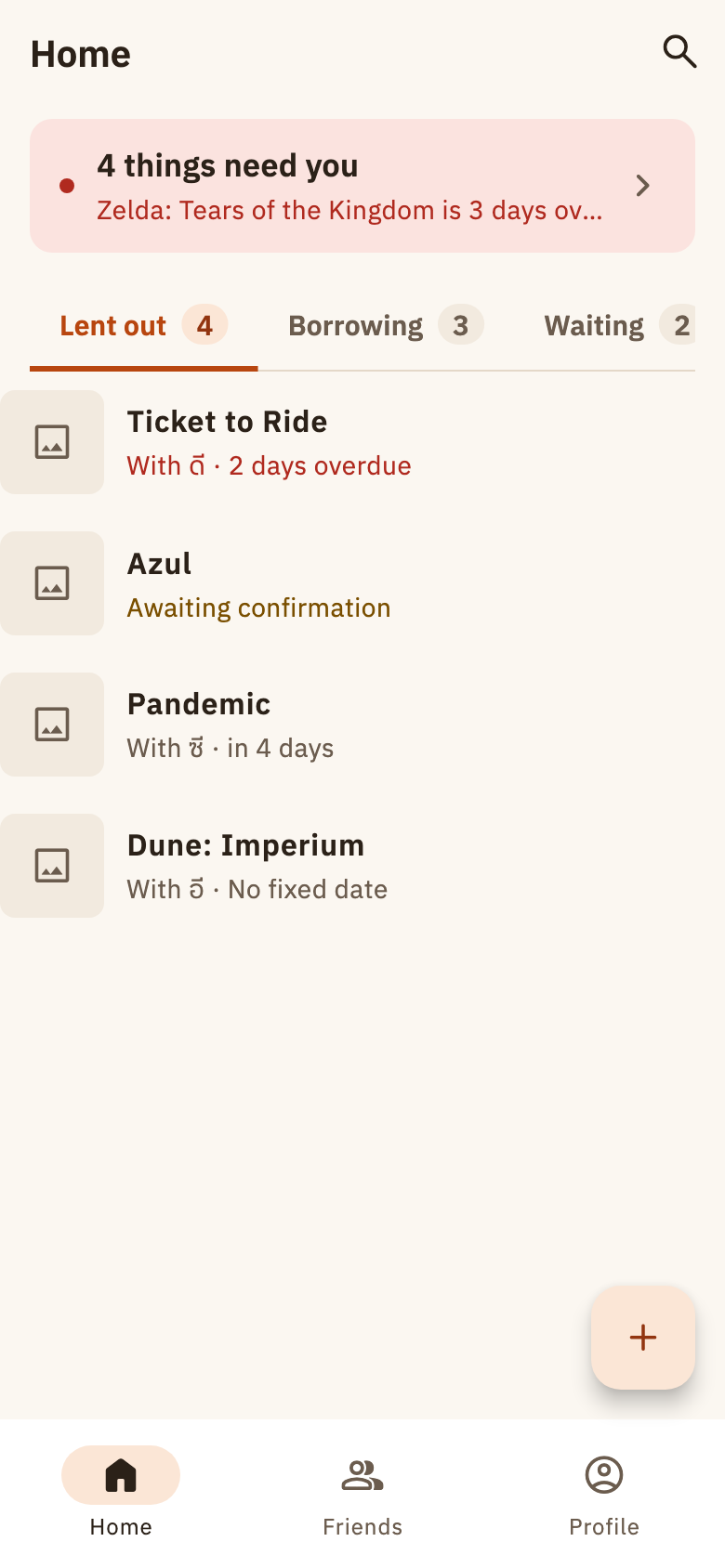
- Needs you sits at the top when there's something for you to tap, like approving a request, confirming you received something, or your turn in a queue. The most urgent comes first.
- Tabs: Lent out (your things with other people) · Borrowing (other people's things with you) · Waiting (your queue places and requests). Empty tabs are hidden.
- If you have no loans yet, Home shows the items in your groups to browse instead.
10. Notifications
The app asks for permission once, after you sign in. There are three kinds:
- Needs you: something waiting for you to tap. It also appears at the top of Home.
- About you: what happened to your requests and queue places, and due-date reminders.
- For your information: for example, your item changed hands.
Turn each kind of notification on or off in Settings › Notifications. Even with one off, anything you need to act on still appears at the top of Home, so nothing gets stuck. Due-date reminders go out once a day at 9 am (Thailand time). There's no notification when a friend joins a group.
11. Who sees what
- Your items are seen only by the groups and friends you choose.
- People who know each other (friends, or in the same group) see each other's names.
- People who don't know the holder or someone in the queue see them as "1 member", in the item's status and its history.
- The owner always sees the real names of everyone involved with their items.
How we handle your data: privacy policy.
12. Language and account
- The app follows your phone's language (Thai, otherwise English). Change it in Settings › Language. It applies straight away, and notifications use the same language.
- You can delete your account once every loan involving you is closed: things you're borrowing and your things that are with other people. How to ask: delete your account.
13. Words used in the app
| Word | Meaning |
|---|---|
| Owner | The person who added the item. |
| With [name] | Who has the item now. The owner can have it too. |
| Borrow | Ask for an item that's available. |
| Join queue | Ask for an item that's out. You're in once the owner approves. |
| Next in line | The person who gets the item next. "Your turn" means it's ready for you. |
| Lend | The owner sends the item out. |
| Pass on | The holder hands it to the next in line, without going through the owner. |
| Return | The holder gives it back to the owner. |
| Confirm received | The receiver taps this once they really have it. Only then does the holder change. |
| Ask for it back | The owner wants it back before the due date. |
| Paused | The item is still listed, but nobody can borrow or queue for now. |
| Pass-on off | The holder always returns it to the owner. |
| No fixed date | A loan with no due date, so no reminders. |
| Know each other | Friends, or in the same group. |
14. Questions
Do we pay or charge rent in the app?
No. MateShelf keeps track of who has what. There are no payments between users.
I confirmed before I had the item. What now?
The app now shows you as the holder. If the handover can't happen, tap Return, and the owner confirms they have it.
Does the owner know when it's passed on?
Yes. The owner is notified every time the item is passed on and every time the receiver confirms.
Why do some people show as "1 member"?
You and that person don't know each other in the app (not friends and not in the same group), so their name isn't shown.
What if something is lost or damaged?
The app has no insurance or compensation. Sort it out between yourselves; the item's history shows who had it last and since when.
The invite link doesn't open
Open the app, choose to enter an invite code, and type the code from the invite. If the code doesn't work, the admin may have reset it: ask your friend for a new one.
Still have a question? Email support@mateshelf.app